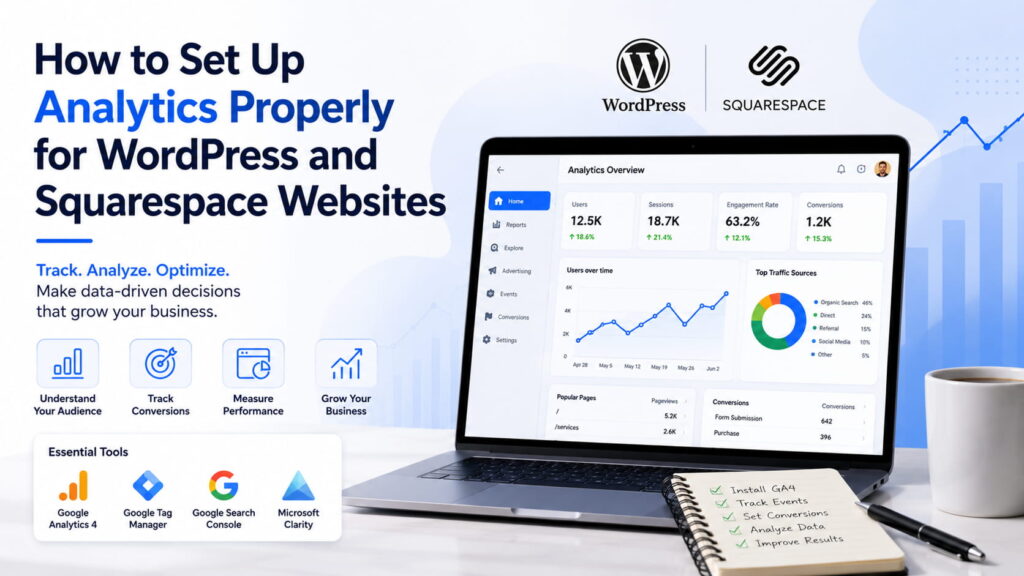
Every Successful Website Starts with Accurate Analytics
You can’t improve what you don’t measure.
Whether you’re running a WordPress website, a Squarespace business site, or an ecommerce store, properly configured website analytics give you the insights needed to grow your business. From understanding how visitors find your website to measuring conversions and identifying user behavior, analytics transform raw data into actionable decisions.
This comprehensive guide explains how to set up Google Analytics 4 (GA4) on WordPress and Squarespace, connect Google Search Console, configure conversion tracking, and implement best practices that improve your SEO, marketing performance, and customer experience.
Key Takeaways
- Learn how to install Google Analytics 4 (GA4) on WordPress and Squarespace.
- Discover the difference between Google Analytics and Google Tag Manager.
- Track conversions, events, and user behavior accurately.
- Connect Google Search Console to monitor SEO performance.
- Avoid common analytics mistakes that lead to inaccurate data.
- Build a reliable reporting system for smarter marketing decisions.
What Is Website Analytics?
Website analytics is the process of collecting, measuring, and analyzing data about how visitors interact with your website.
Analytics helps businesses understand:
- Where visitors come from
- Which pages generate the most traffic
- How users navigate the website
- Which marketing channels perform best
- What prevents visitors from converting into customers
Without analytics, decisions are based on assumptions rather than real user data.
Why Website Analytics Matters
Proper analytics implementation allows you to:
- Improve SEO performance
- Increase conversion rates
- Understand user behavior
- Optimize your UI/UX
- Measure marketing ROI
- Improve content strategy
- Reduce bounce rates
- Identify technical issues
- Track ecommerce sales
- Make better business decisions
Businesses that consistently analyze their data can continuously optimize their websites and stay ahead of competitors.
Which Analytics Tools Should You Use?
Google Analytics 4 (GA4)
Google Analytics 4 is the industry standard for measuring website traffic and user behavior.
It provides insights into:
- Users
- Sessions
- Engagement
- Events
- Conversions
- Revenue
- Audience demographics
- Traffic sources
GA4 is recommended for both WordPress and Squarespace websites.
Google Search Console
Google Search Console focuses on your website’s performance in Google Search.
It helps monitor:
- Search impressions
- Organic clicks
- Average rankings
- Click-through rate (CTR)
- Indexed pages
- Core Web Vitals
- Technical SEO issues
Google Tag Manager
Google Tag Manager allows you to deploy tracking scripts without editing your website’s code.
It’s ideal for managing:
- Google Analytics events
- Facebook Pixel
- LinkedIn Insight Tag
- TikTok Pixel
- Custom conversion tracking
- Marketing tags
User Behavior Analytics Tools
For deeper insights into visitor interactions, consider:
- Microsoft Clarity
- Hotjar
- Crazy Egg
These platforms provide heatmaps, session recordings, click tracking, and scroll-depth analysis.
How to Set Up Google Analytics on WordPress
Step 1: Create a Google Analytics Account
Create a Google Analytics account and set up a new Google Analytics 4 property for your website.
Step 2: Install GA4
You can install Google Analytics using one of these methods:
- Site Kit by Google
- MonsterInsights
- Google Tag Manager
- Manual code implementation
- Custom code plugin
Plugin-based installations are typically the easiest option for most WordPress websites.
Step 3: Verify Data Collection
Open the GA4 Real-Time report and confirm that your website is sending data correctly.
Step 4: Configure Conversion Tracking
Track meaningful business actions such as:
- Contact form submissions
- Newsletter signups
- Phone number clicks
- Quote requests
- Purchases
- Appointment bookings
How to Set Up Google Analytics on Squarespace
Step 1: Create Your GA4 Property
Generate your Google Analytics Measurement ID (G-XXXXXXXXXX).
Step 2: Add Analytics to Squarespace
Navigate to:
Settings → Developer Tools / External Services → Google Analytics
Paste your Measurement ID and save the changes.
Step 3: Verify Installation
Use the GA4 Real-Time dashboard to ensure data is being collected correctly.
Step 4: Enable Ecommerce Tracking
If you operate an online store, configure ecommerce tracking to monitor:
- Revenue
- Transactions
- Products
- Checkout performance
- Customer journeys
What Metrics Should You Track?
The most valuable website metrics include:
| Metric | Why It Matters |
|---|---|
| Users | Measures audience growth |
| Sessions | Shows website activity |
| Engagement Rate | Indicates content quality |
| Average Engagement Time | Measures visitor interest |
| Conversions | Tracks business goals |
| Traffic Sources | Identifies best marketing channels |
| Landing Pages | Evaluates SEO performance |
| Events | Monitors user interactions |
| Purchases | Measures ecommerce success |
| Form Submissions | Tracks lead generation |
Best Practices for Website Analytics
To maximize the value of your analytics:
- Monitor traffic regularly.
- Track important business events.
- Connect Google Search Console.
- Review landing page performance.
- Analyze user journeys.
- Optimize high-performing pages.
- Compare marketing campaigns.
- Build monthly reports.
- Combine analytics with UX testing.
- Continuously improve your website based on real user data.
Common Analytics Setup Mistakes
Avoid these common issues:
- Installing Google Analytics multiple times
- Forgetting to configure conversion tracking
- Not connecting Google Search Console
- Tracking internal company traffic
- Missing cookie consent implementation
- Using the wrong GA4 property
- Ignoring ecommerce tracking
- Failing to test events after setup
Correct implementation ensures accurate reporting and better decision-making.
Website Analytics Setup Checklist
Before considering your setup complete, make sure you’ve:
- Installed Google Analytics 4
- Connected Google Search Console
- Submitted your XML sitemap
- Configured conversion tracking
- Set up custom events
- Enabled ecommerce tracking (if applicable)
- Excluded internal traffic
- Installed a cookie consent banner
- Added heatmap tracking
- Created monthly performance reports
Frequently Asked Questions
Is Google Analytics free?
Yes. Google Analytics 4 is free and provides powerful insights for most businesses.
What is the difference between Google Analytics and Google Tag Manager?
Google Analytics collects and reports website data, while Google Tag Manager manages and deploys tracking codes without editing your website.
Can I install Google Analytics without a plugin?
Yes. You can manually add the tracking code or use Google Tag Manager.
Does Squarespace support Google Analytics 4?
Yes. Squarespace supports GA4 through its built-in integrations.
Should I use Google Search Console?
Absolutely. Search Console complements Google Analytics by providing SEO-specific insights such as rankings, impressions, and indexing status.
How often should I review analytics?
Most businesses benefit from reviewing website analytics weekly and producing detailed monthly reports.
Conclusion
Website analytics is the foundation of effective digital marketing, SEO, and conversion optimization.
Whether your website is built with WordPress or Squarespace, implementing Google Analytics 4, Google Search Console, and user behavior tracking tools enables you to make informed decisions that improve performance and increase revenue.
Analytics isn’t just about collecting numbers—it’s about understanding your audience, optimizing their experience, and creating measurable business growth.